Dropbox is an easy-to-use file sync and sharing application. However when being used in UCD campus your dropbox utility may be unable to connect to the internet. This is because you need to change your dropbox's proxy setting so that it can access the internet via UCD network. This tutorial will show you how to do it.
Showing posts with label Dropbox. Show all posts
Showing posts with label Dropbox. Show all posts


How to share your dropbox files on Windows
Dropbox is an easy to use file sync and sharing application. After registering for free dropbox accounts, you may want to create a shared folder with your friends so that both you and your friends can easily access files in that folder.
Here are simple steps that can help you share your files with your friends.
Here are simple steps that can help you share your files with your friends.
How to share your files via dropbox website
Dropbox is an easy to use file sync and sharing application. After registering for free dropbox accounts, you may want to create a shared folder with your friends so that both you and your friends can easily access files in that folder.
Here are simple steps that can help you share your files with your friends.
How to increase your free dropbox account up to 16GB?
Dropbox is an easy to use file sync and sharing application. After registering for a free dropbox account, we can get 2GB free or 2.25GB or 2.5GB depending on whether we create an account via dropbox's home page or invited by friend having a standard free dropbox account or having a free student dropbox account.
However, the 2GB - 2.5GB is very limited. There are simple steps that can help you increase your free account up to 16GB:
How to create a dropbox account?

Dropbox is an easy to use cloud storage service. Here are simple steps to have a dropbox account.
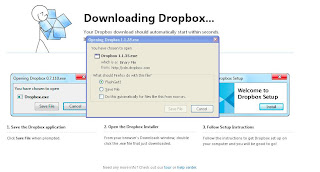

1. You can go to dropbox main page to register an account or go to a link referred by friend (if you click my link you get a bonus of 500MB as my account is a student account)
2. You then fill in the form the neccessary information such as First name, Last name, Email, Password, and tick the agree button.
3. You can then download the dropbox utility
to install on your PC/Laptop.
4. The first time you run the dropbox tool on your machine you'll be asked if you have a dropbox account or not. Click to choose that you have an account and enter the account you just created in step 2 above and done!
Subscribe to:
Posts (Atom)
About Me

- Tutorials4Share
- I am a software developer with roughly 5 years of experience in developing end-to-end solutions in C#, Java, C/C++, PHP and HTML/CSS/Javascript. At the moment, I am joining the Professional Doctorate in Engineering degree program in Software Technology at Eindhoven University of Technology. My areas of particular interest include software design, data structures and algorithms, problem solving, software security, embedded system, machine learning, and data science.